View Linked and Not Linked Appointments from Financials
This guide shows how to view which appointments have an invoice linked (and which don’t) directly from Financials. It’s helpful for quickly spotting missing invoice links and linking an invoice to the correct appointment when needed.
Step-by-Step
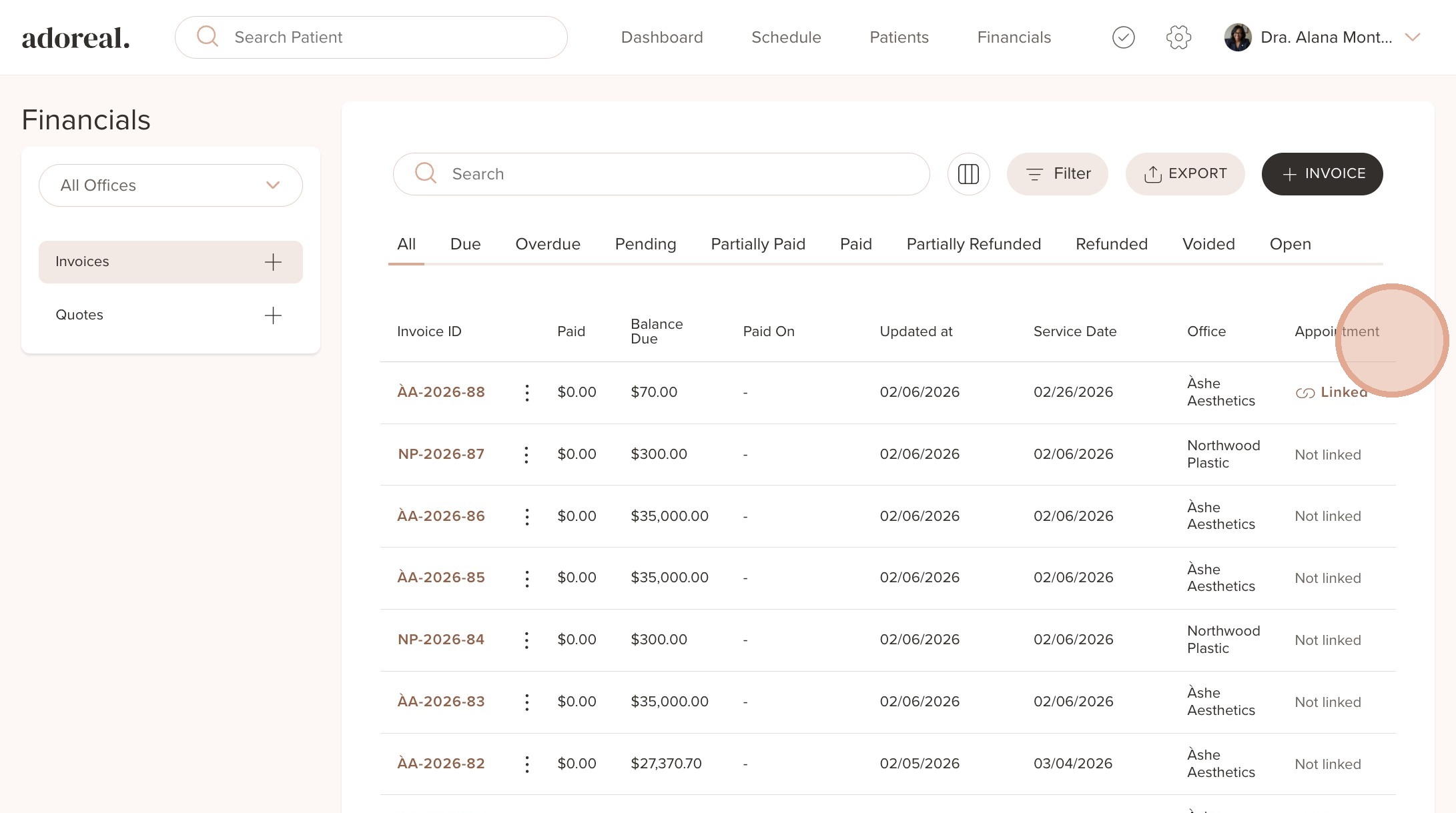
1. Go to Financials in the top menu. Under Appointments, you’ll see a list of all appointments and whether an invoice is linked to the appointment or not.
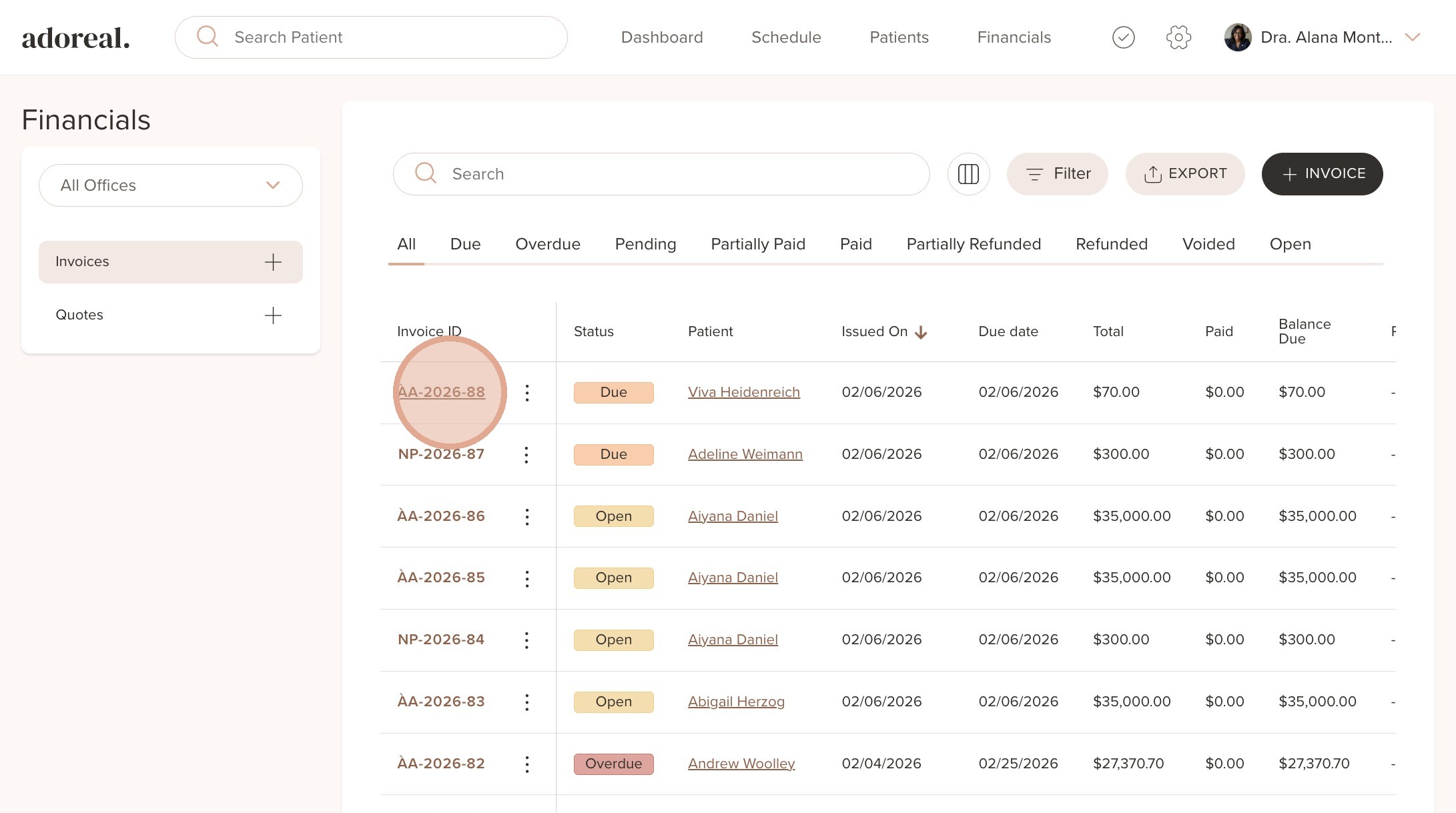
2. To link an invoice to an appointment, click on its ID number.
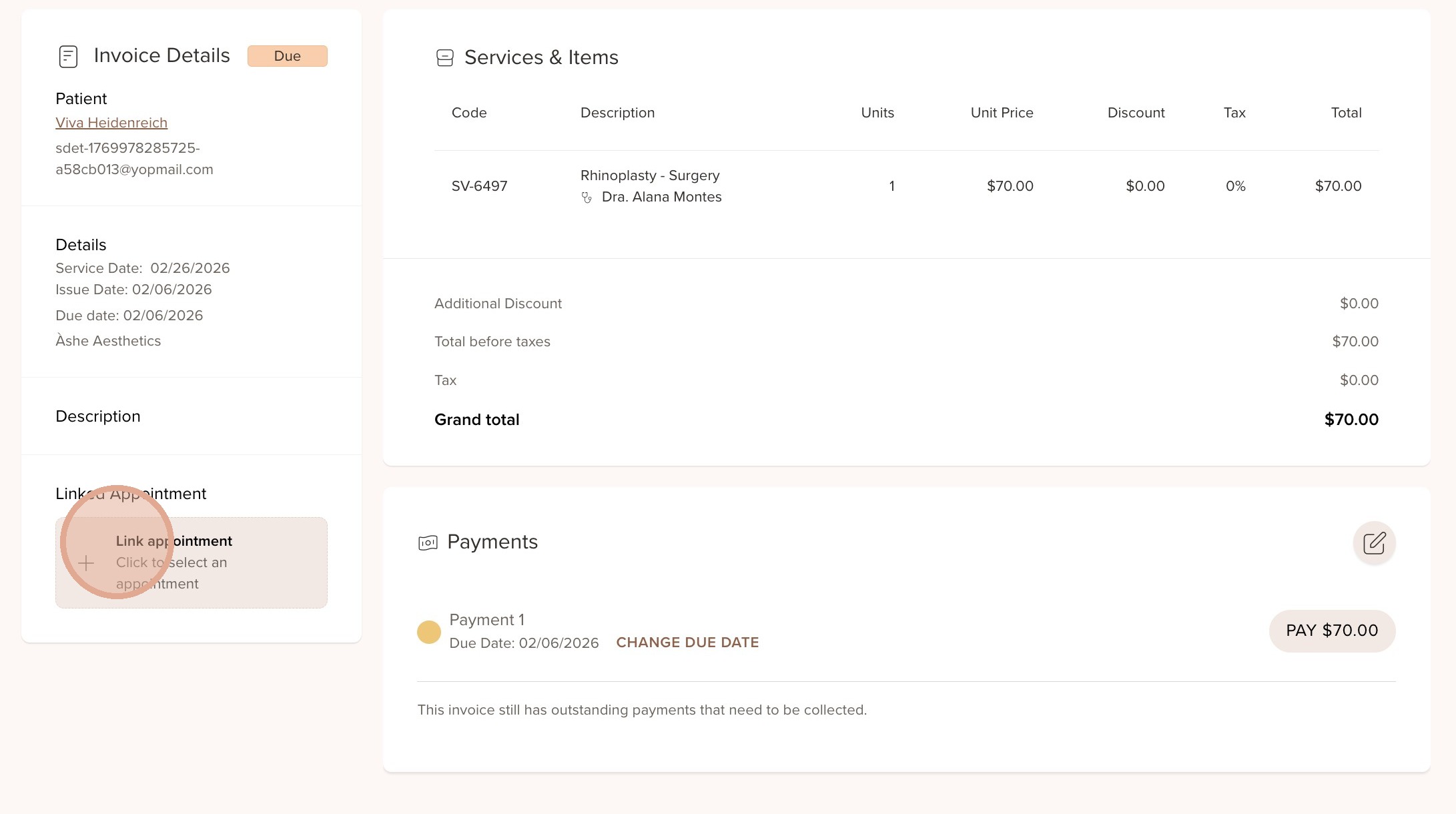
3. From here, you can link the invoice to an appointment. Click "+ Link appointment".
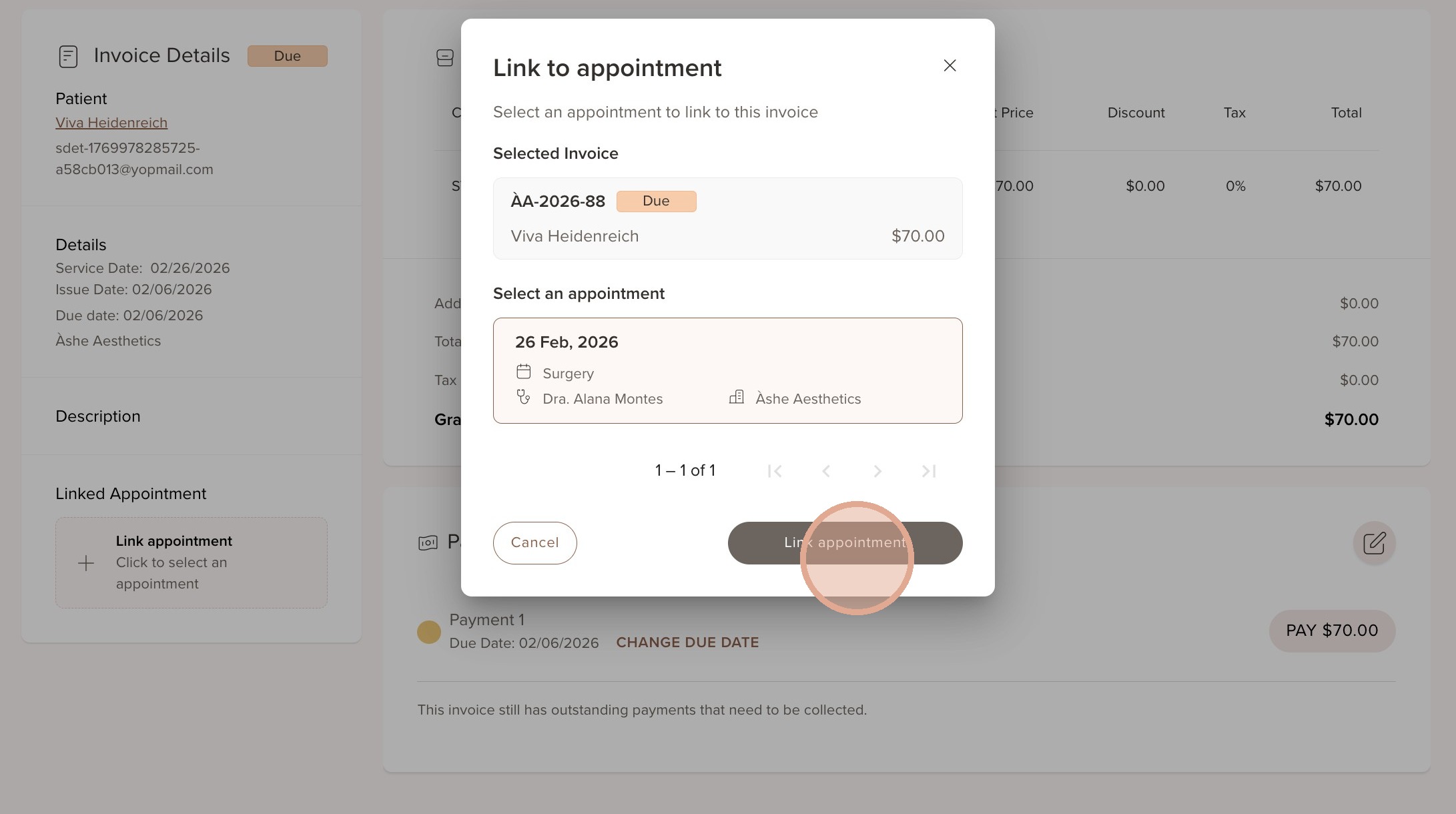
4. Select the appointment you want to link. Please note that only appointments booked at the same location as the invoice is issued will be visible.
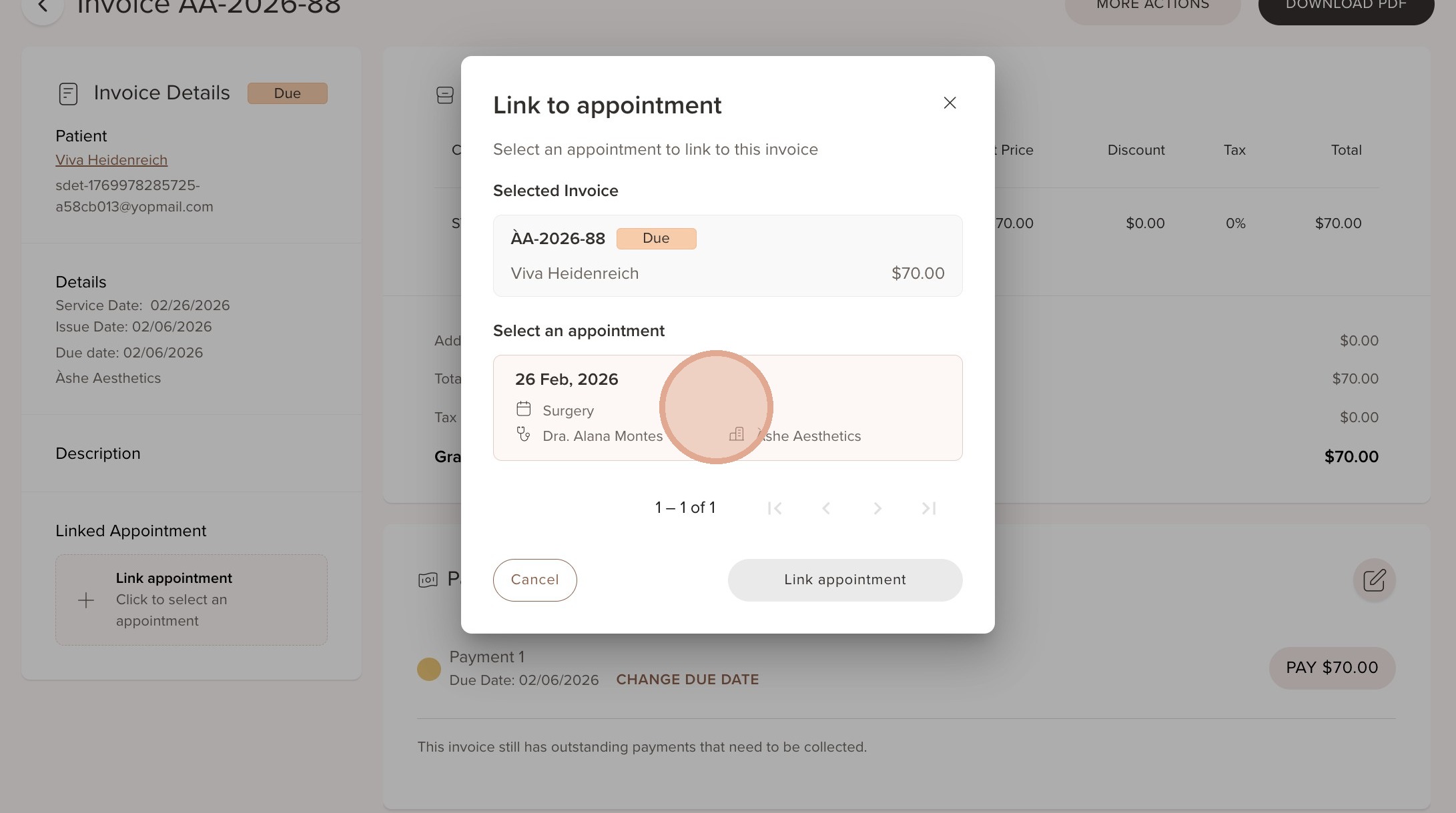
5. Click "Link appointment"
Was this article helpful?
That’s Great!
Thank you for your feedback
Sorry! We couldn't be helpful
Thank you for your feedback
Feedback sent
We appreciate your effort and will try to fix the article