Add Branding to Invoice PDFs
This guide explains how to add your practice’s branding to invoice PDFs. Adding your logo and custom text helps ensure invoices look professional and clearly represent your practice when sent to patients.
Step-by-Step
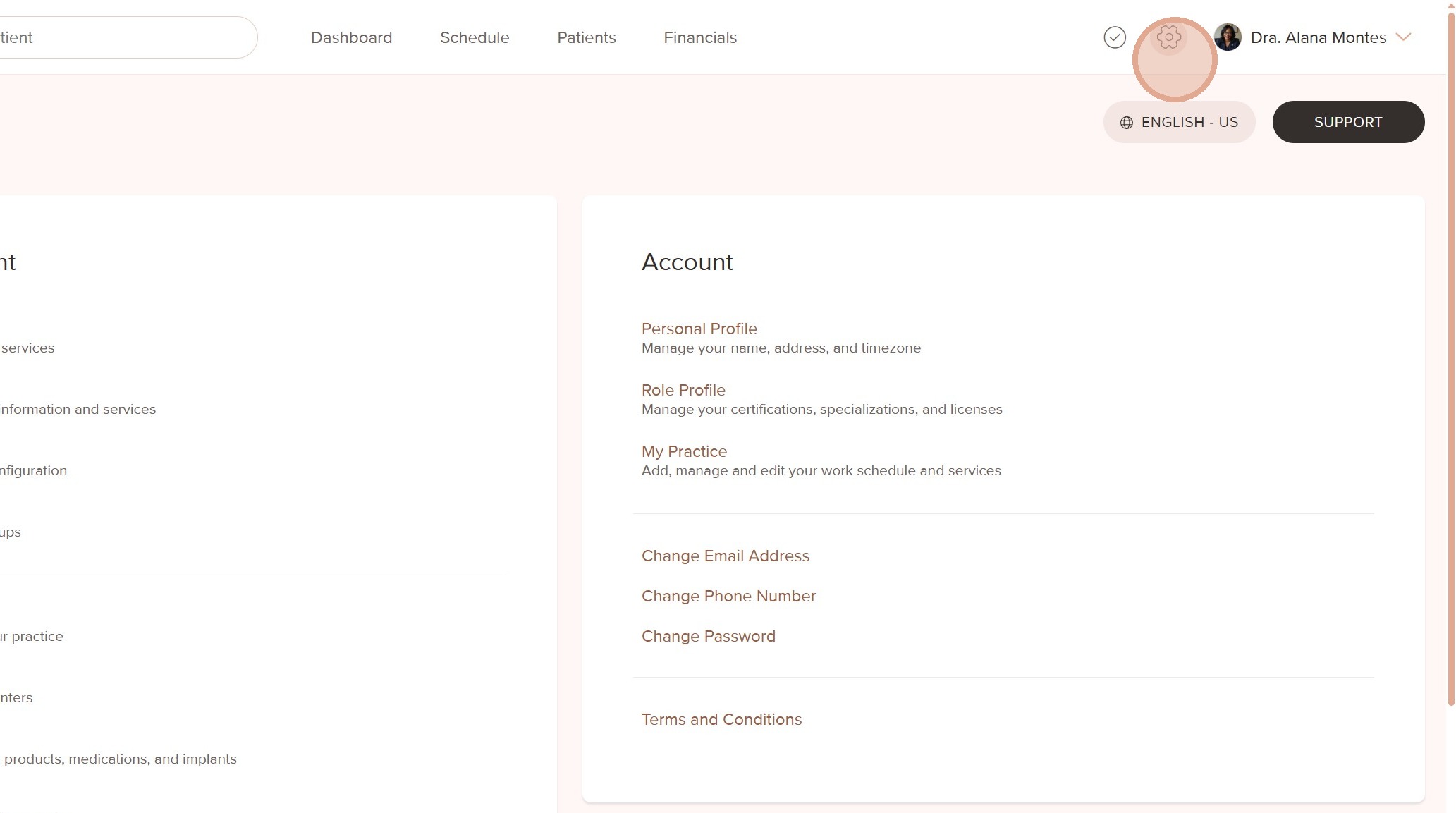
1. To add your customized information to invoice PDFs, go to "Settings".
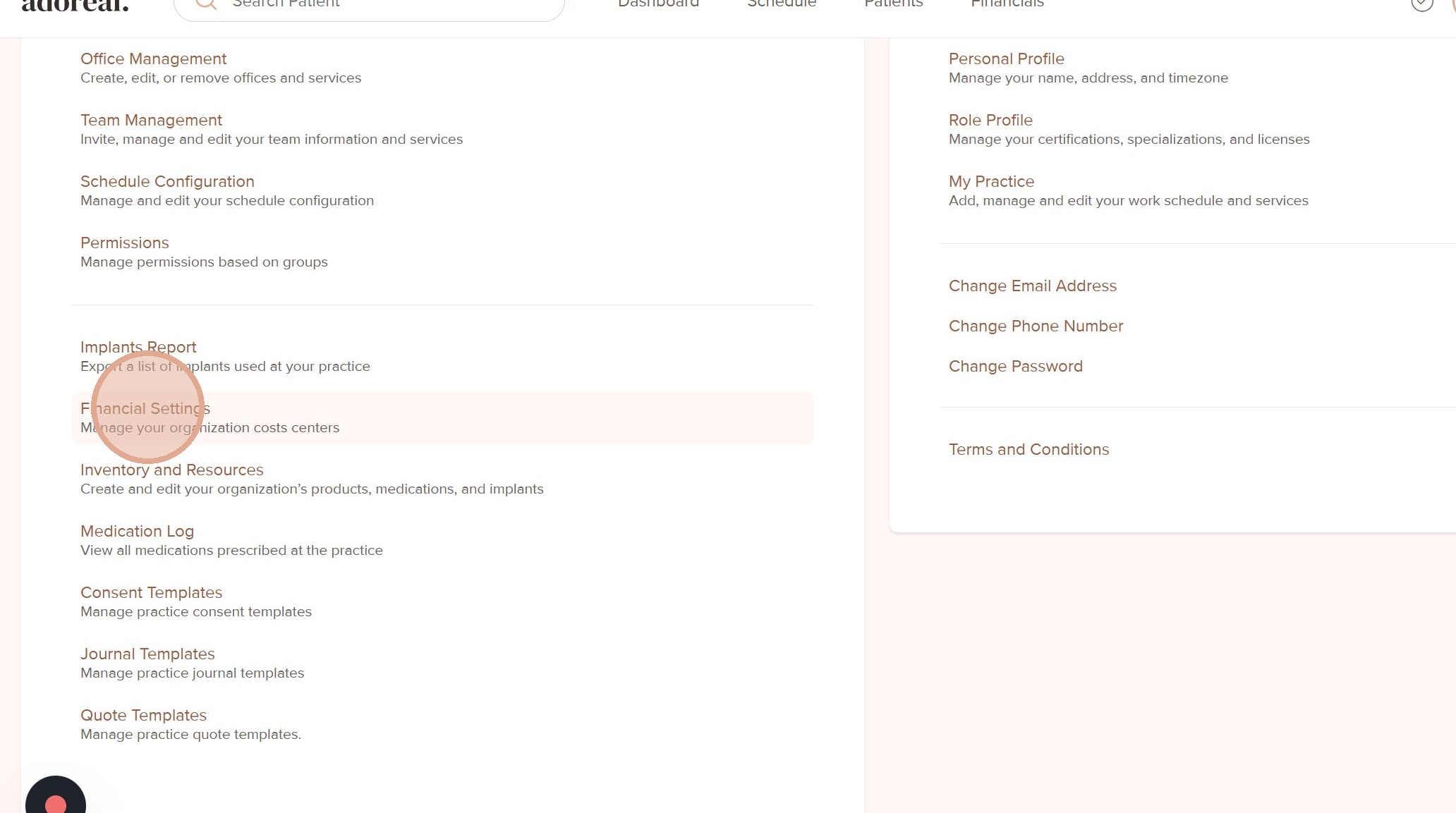
2. Click on "Financial Settings"
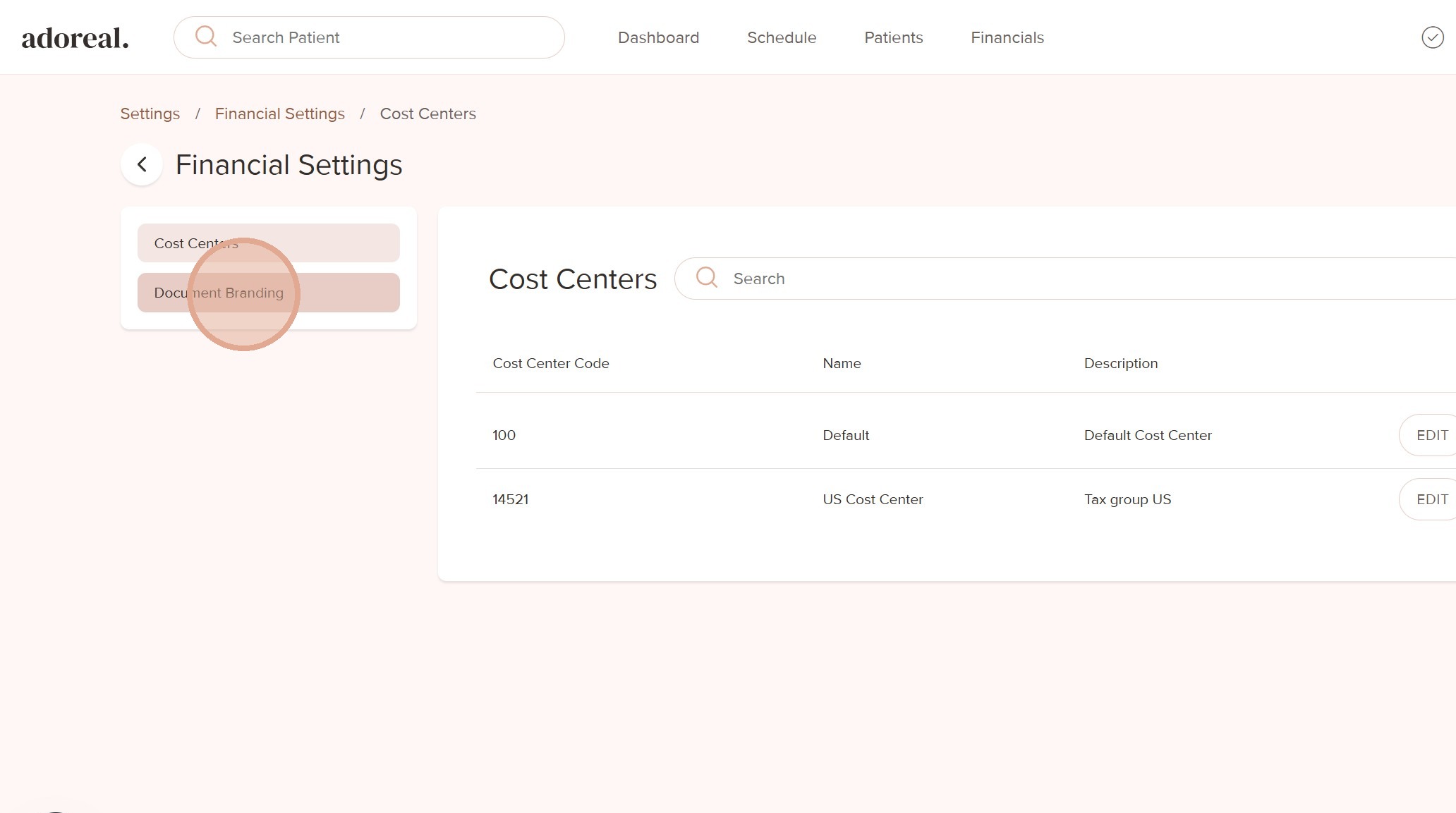
3. Go to "Document Branding"
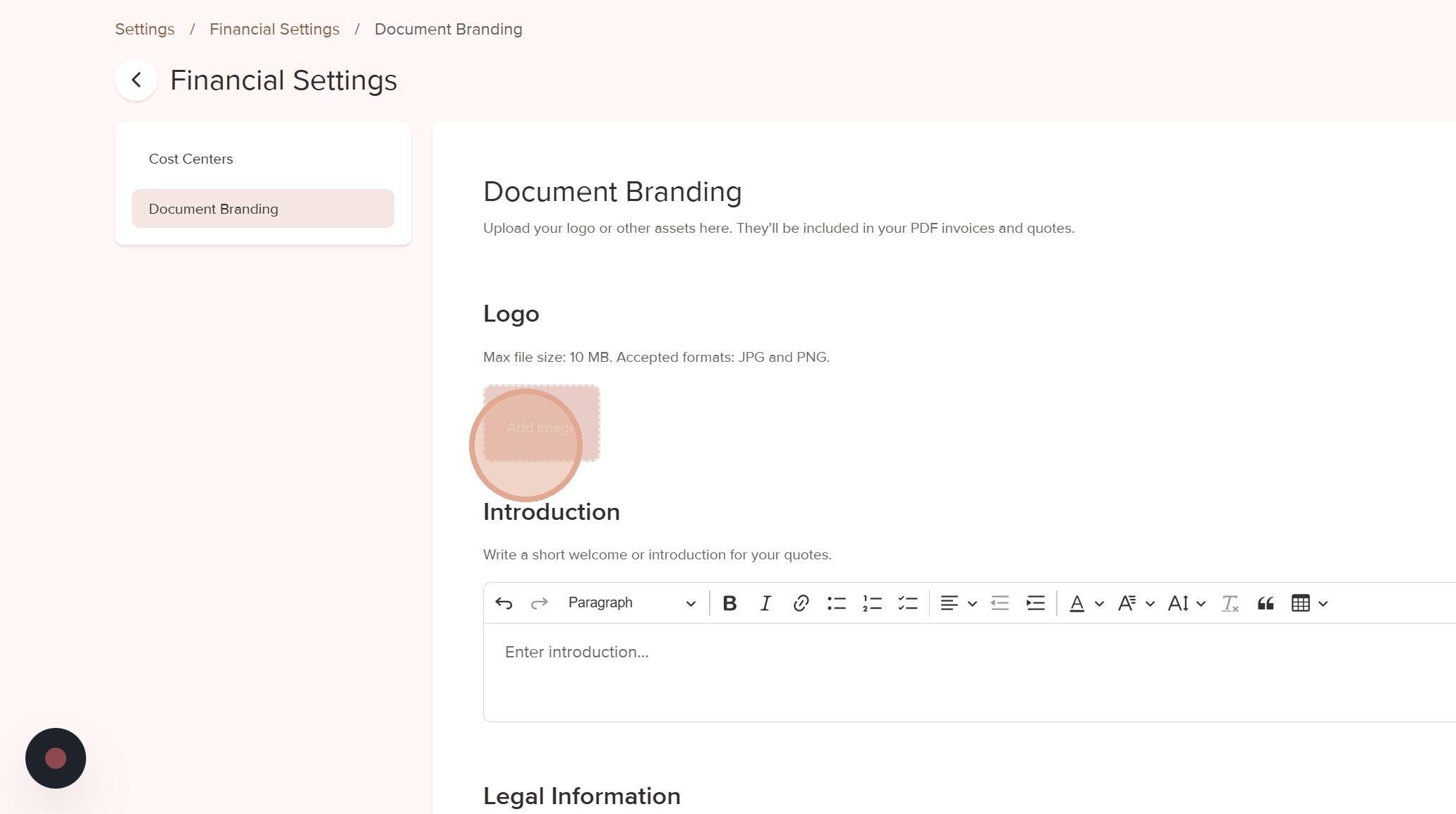
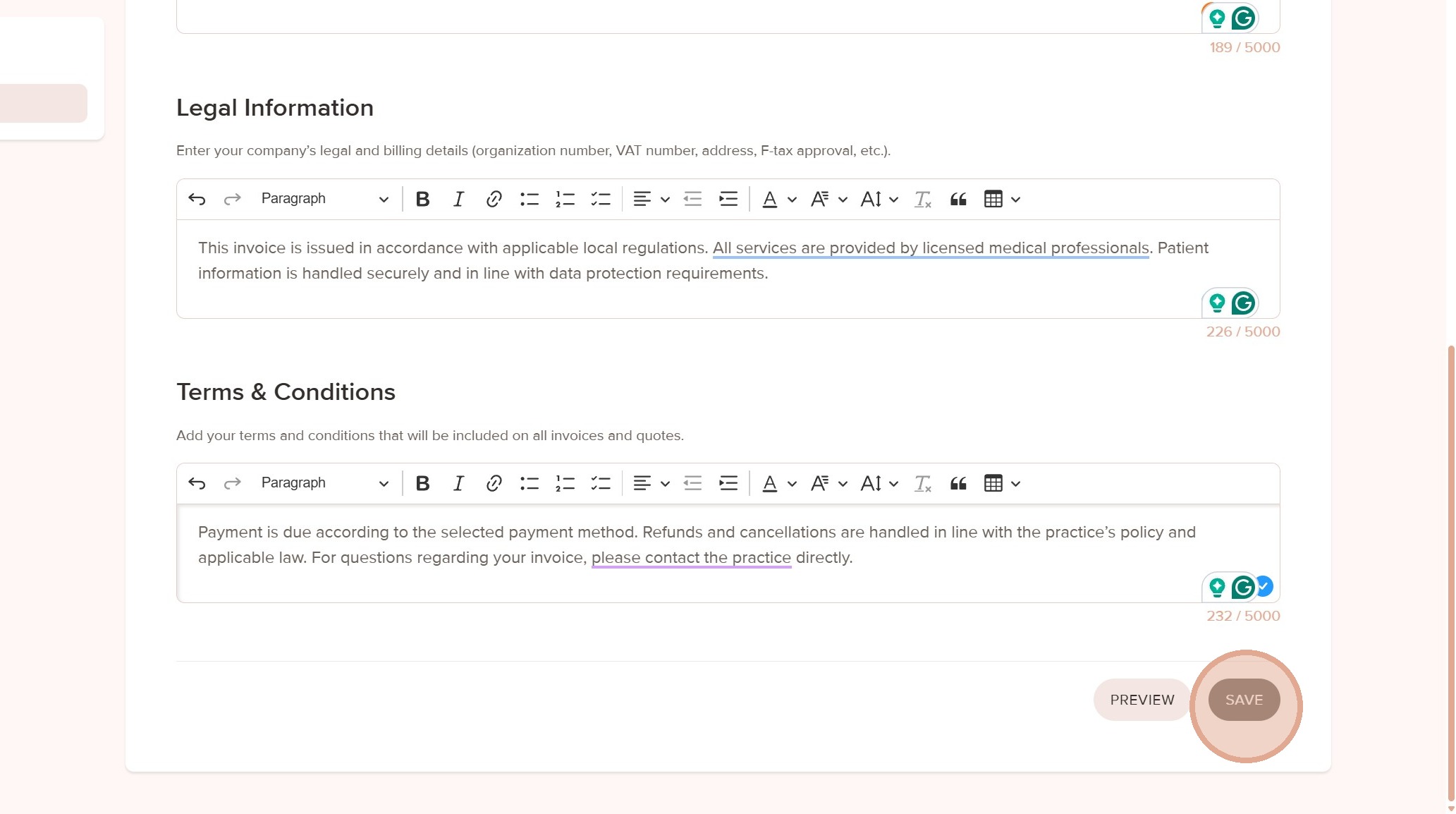
4. Here, you can add your logo, an introduction text, legal information, and terms and conditions.
5. Once you are ready, click "Save"
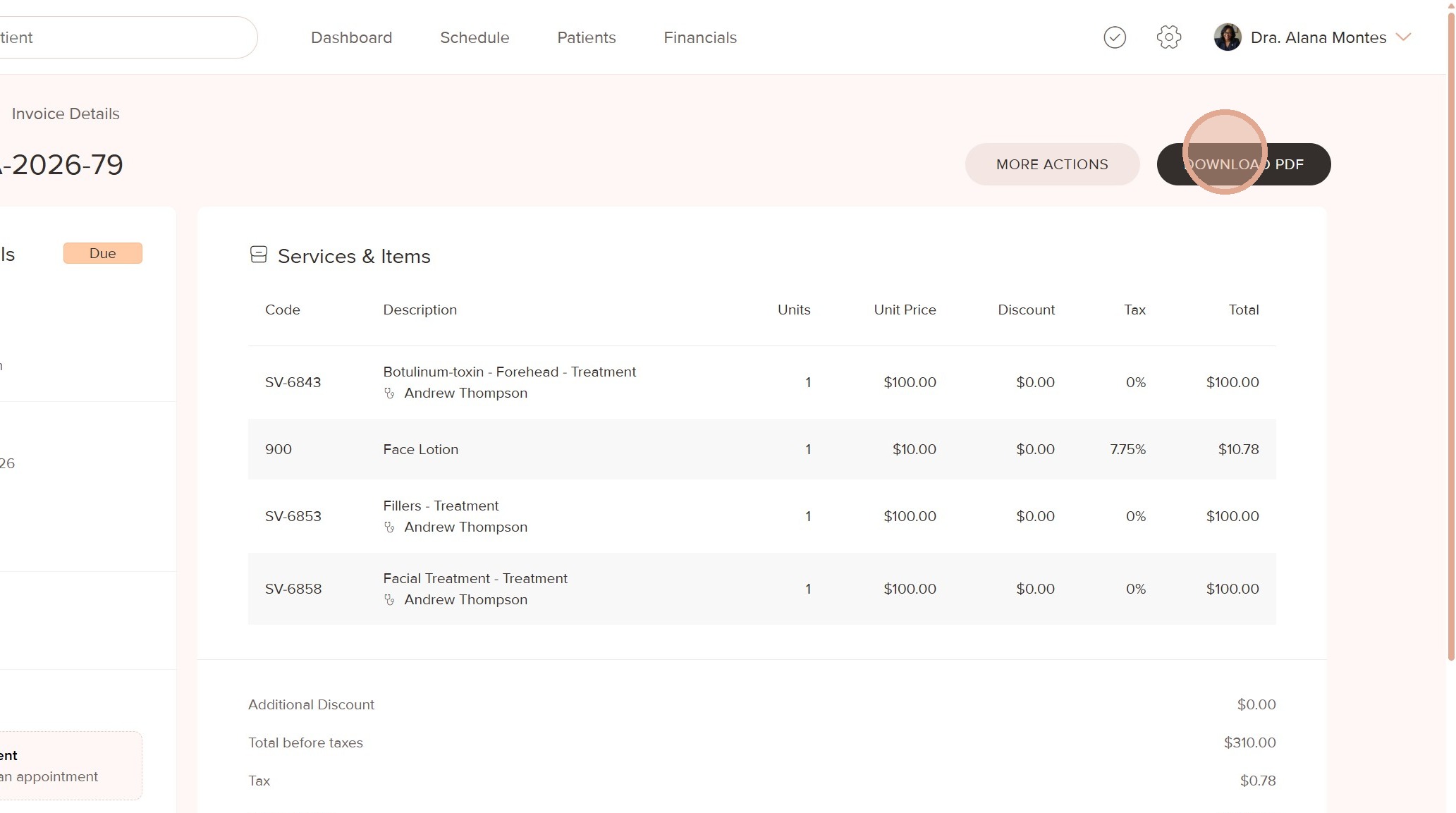
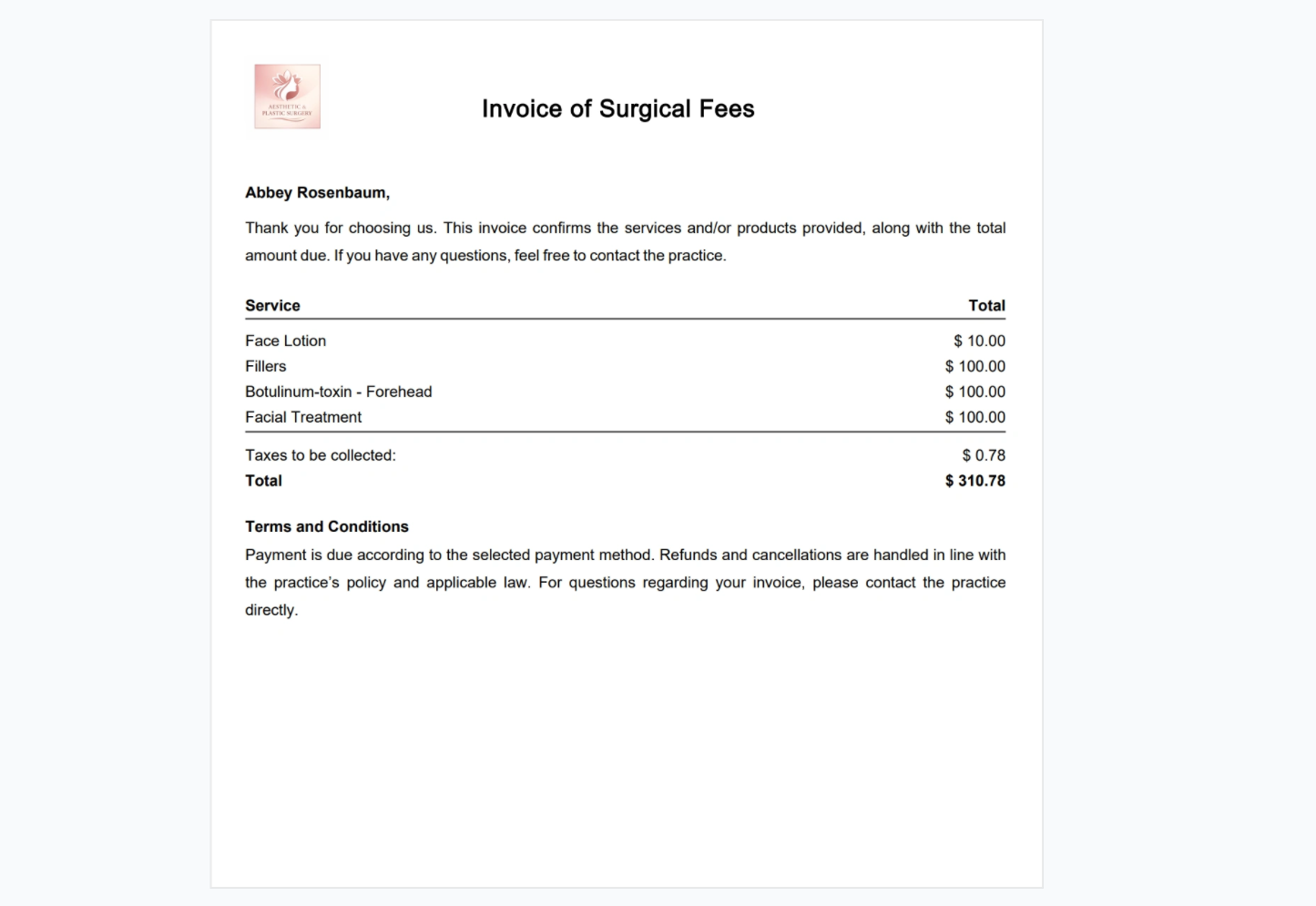
6. You can see the final result by opening an invoice and clicking "Download PDF".
7.
Was this article helpful?
That’s Great!
Thank you for your feedback
Sorry! We couldn't be helpful
Thank you for your feedback
Feedback sent
We appreciate your effort and will try to fix the article